Extend Feature Overview
Introduction
The Extend feature in OpenMusic lets you continue an existing song by adding fresh musical sections without rebuilding the track from the beginning.
It generates new material that connects naturally with your original audio while still allowing creative variation.
Pick a song to extend
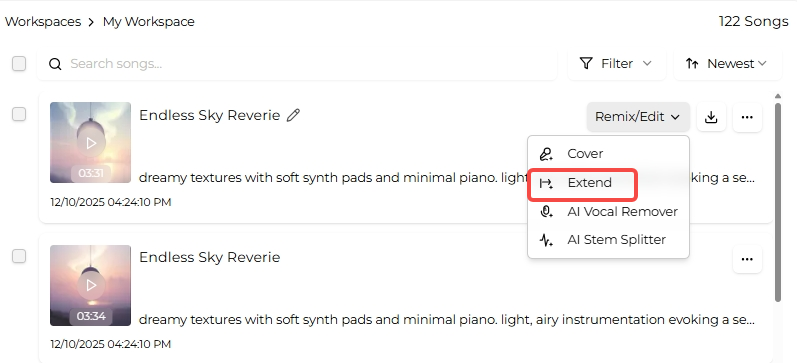
Open the AI Music Generator and locate the song you want to expand in the workspace panel on the right. Select it to enter the Extend view, where you control how the new section will be created.
Decide the extension start point
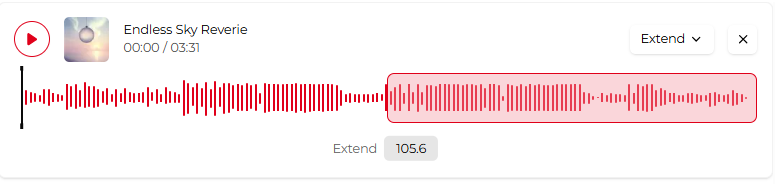
Use the timeline slider or enter an exact time to choose where the extension begins. The system keeps everything before that point unchanged and starts composing new audio from your selected position.
Shape the new section
Choose whether the added part should include vocals or remain instrumental.
In the Extend Style field, describe how the new section should sound, such as mood, genre, instruments, or overall atmosphere.
Adjust advanced controls
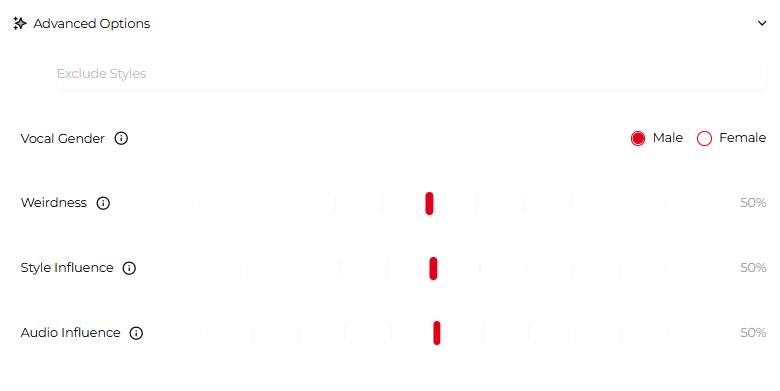
Open Advanced options to fine-tune the result with additional settings:
- Exclude Styles: Specify styles you want to avoid.
- Vocal Gender: Select the vocal type for the extension.
- Weirdness: Sets how experimental the new section feels; lower values stay closer to familiar patterns.
- Style Influence: Controls how strongly your style description shapes the output.
- Audio Influence: Determines how closely the extension follows the original track.
When ready, click Generate and wait while OpenMusic creates the extended portion of your song.