One preset per release. Changing Photo Style between tracks is the fastest way to break the set.
EP video style sheet
Music Video Generator for a Whole EP
Five songs should look like one release, not five experiments. Use the OpenMusic music video generator with one locked set of settings, so every track on your EP or album gets a video that clearly belongs to the same record. Choose the Photo Style, caption style and canvas once, write them down, and reuse them for each song so the set looks planned from the first upload to the last.
Open the Video GeneratorCheck the fit first
What the Music Video Generator Makes and What It Won't
The tool starts from audio. You upload a track or pick one from My Music, choose a canvas, a Photo Style, captions and a sound wave, and the music video generator paints the visuals for you. You need to log in to generate, and the result is a video built from generated images.
That suits a release where the music is the star. Answer these questions before planning a full EP around it, because a few common requests are outside what the music video generator does.
Do you want footage of yourself or your band?
Not here. The tool does not take your own clips or photos, and it cannot edit a video you shot.
Do you need a dancing or lip-synced performer?
No. Dance videos made from a photo are not offered.
Do you expect a timeline?
No. There are no cuts, layers or keyframes to drag. You change settings and generate again.
Do you need a specific export spec?
Not published. Export format, resolution, maximum length and the credit cost per video are not published, so test one track before you plan the rest.
Why consistency matters
Why an EP Needs One Visual Language
Listeners judge a release by its first glance
When someone opens your channel and sees five thumbnails in five unrelated looks, the songs read as a playlist of experiments. When the colours, framing and captions match, the same five videos read as one record, and a fan who liked track two knows track four is from the same release.
A music video generator makes this easy to get wrong, because every new run tempts you to try a different preset. Writing a style sheet first removes that temptation and keeps the record coherent.
Consistency
The Same Few Choices for Every Track
Every video the music video generator makes for your EP comes from the same short set of choices, which is why a style sheet works. You add the song as an MP3, WAV, OGG, M4A, AAC, FLAC or WMA file, or pick it from My Music. Then you decide the video size, display mode and Photo Style, and how the captions look and where they sit.
One Photo Style for the Whole Release
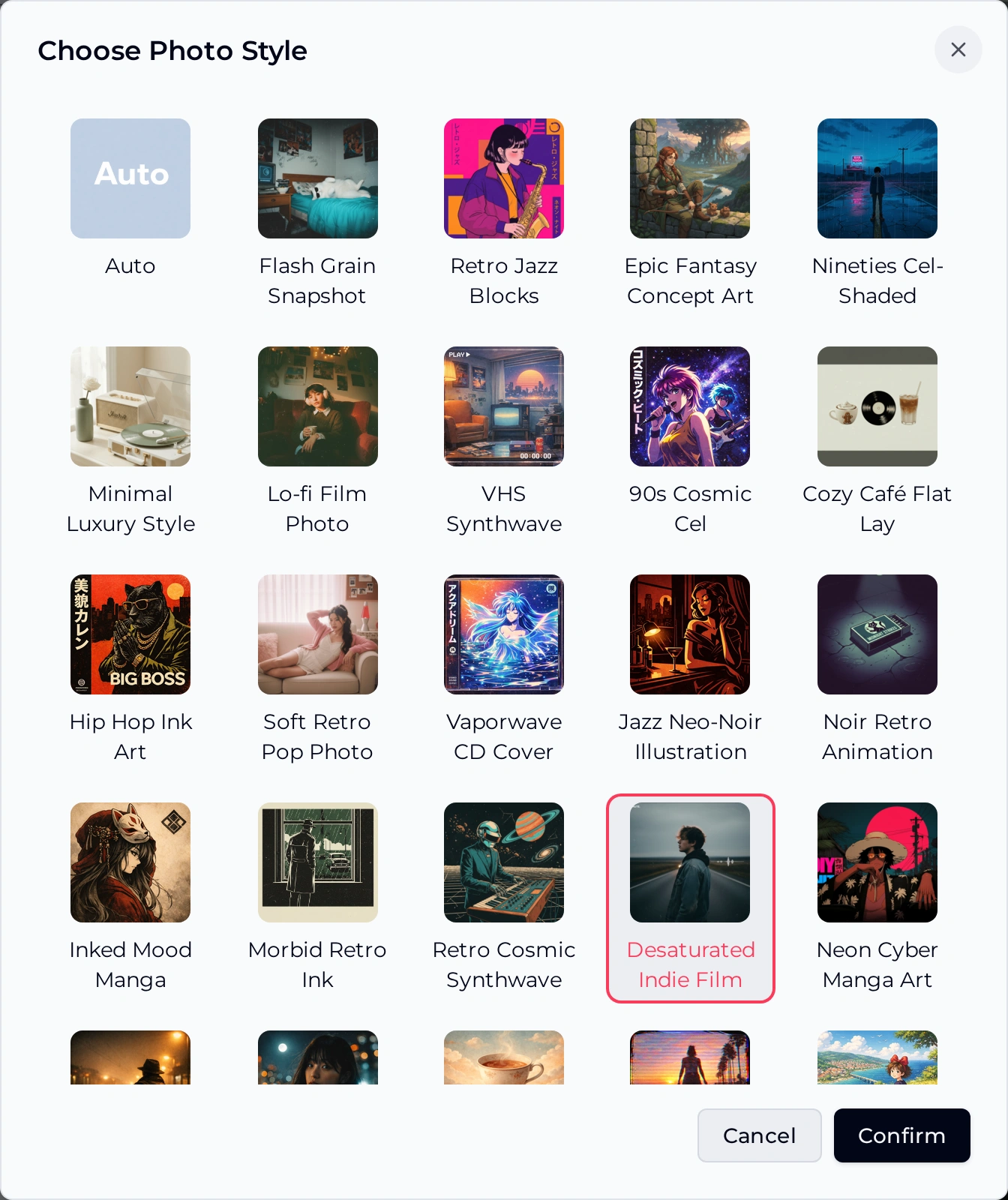
Photo Style is the music video generator choice that matters most for an EP. You can leave it on Auto (1) or pick one of 27 named presets (2) and confirm it (3). Using the same preset for every song makes it the visual signature of your whole release.
For captions in the music video generator, decide whether to show them, which style to use (Simple Outline is the default) and whether they sit at the top, middle or bottom. You can also add a sound wave, which suits a phone teaser.
Plan once
Build the Style Sheet Before the First Track
A style sheet is one table that fixes every music video generator setting across the release. Fill it in before generating anything, then copy the same choices for each song. Only the rows marked as variable should change between tracks. Here is a working example for a four-song EP with one focus track.
| Setting | Lead videoFocus track | Track two | Track three | Phone teaser |
|---|---|---|---|---|
| Photo Style | Desaturated Indie Film | Desaturated Indie Film | Desaturated Indie Film | Desaturated Indie Film |
| Video Size | 16:9 | 16:9 | 16:9 | 9:16 |
| Display Mode | Multiple Images | Single Image | Single Image | Multiple Images |
| Captions | On, Simple Outline, Bottom | On, Simple Outline, Bottom | On, Simple Outline, Bottom | On, Simple Outline, Middle |
| Sound Wave | Off | Off | Off | On |
Start with your focus track
Upload your strongest song to the music video generator, apply the style sheet settings and generate the first video before you commit the rest of the EP.
Make the First VideoChoose the signature
Pick a Photo Style That Fits the Whole Record
Choose the preset for the record, not for your favourite song. Listen to the EP from start to finish and pick the family of looks that suits the quietest and the loudest track alike. These groups use preset names from the Choose Photo Style window in the music video generator.
- Film
Desaturated Indie Film, Cinematic Film Still, Lo-fi Film Photo and Flash Grain Snapshot suit singer-songwriter, indie and acoustic releases.
- Retro synth
VHS Synthwave, Retro Cosmic Synthwave, Glitch VHS and Vaporwave CD Cover fit synth-pop, chillwave and electronic EPs.
- Ink
Hip Hop Ink Art, Inked Mood Manga, Morbid Retro Ink and Jazz Neo-Noir Illustration give rap, jazz and darker records a drawn look.
- Soft
Minimal Luxury Style, Cozy Café Flat Lay and Soft Retro Pop Photo work for lo-fi study tapes, bedroom pop and calm instrumentals.
Keep it tight
Rules That Keep a Release Consistent
A style sheet only works if you stick to it across several sessions. These rules come from treating the music video generator like a design system rather than a slot machine. Print them next to your track list while you work through the record.
Same caption look everywhere. Keep the caption style and alignment fixed; only the teaser may move captions to the middle.
Let Display Mode mark the focus track. Multiple Images for the single, Single Image for deep cuts, so the lead video feels bigger.
Generate in track order. Working from the first song to the last lets you compare each new video against the ones before it.
Regenerate, don't switch. If one video misses, run the same settings again before you consider any change.
Write it down. Save your settings table with the masters, so a later remix or deluxe track can match.
Ready-made sheets
Three Style Sheet Recipes to Adapt
If you are unsure where to start, adapt one of these. Each recipe is a complete music video generator settings list for a release type, plus the one choice that should change for the focus track. Swap the preset for a neighbour from the same family if the look feels slightly off for your songs.
Acoustic folk EP
- Photo Style Lo-fi Film Photo
- Size 16:9
- Captions On, Bottom
- Sound Wave Off
Use Single Image for every track so the songs breathe, then switch the lead single to Multiple Images. Calm scenes and steady captions keep attention on the voice and guitar.
Synth-pop EP
- Photo Style VHS Synthwave
- Size 16:9 plus a 9:16 teaser
- Captions On, Bottom
- Sound Wave On
Multiple Images suits the energy of the focus track. Keep the sound wave on for every video so the set shares one moving element.
Producer beat tape
- Photo Style Hip Hop Ink Art
- Size 16:9
- Captions Off
- Sound Wave On
Instrumentals rarely need captions. Single Image with the sound wave gives every beat the same clean frame, so a listener scrolling your channel sees one series.
FAQ
Music Video Generator Questions
Can I use songs I made on OpenMusic?
Yes. In the music video generator, choose From My Music in Video Audio to pick a song from your library, or upload a file you made elsewhere. Using the finished master of each song keeps the videos consistent, so export final versions before you start. Keep the same Photo Style, caption style and canvas for every track, and name each video after its song so the set is easy to upload in order.
Can I add my own photos or footage?
No. The music video generator does not take your own images or clips, and the visuals are generated from the Photo Style you choose. If you want your face or band footage in the release, film a separate performance clip for the lead single and use generated videos for the other tracks, so the set still shares one look. Keeping captions and canvas identical across both kinds helps them sit together.
Does it sync to the beat?
OpenMusic describes the music video generator as detecting song structure to line up visual transitions with beat drops. Check the result on each track rather than assuming it, because songs with a soft intro or a sudden tempo change can land differently from steady ones. Watch the first chorus and the biggest drop closely, and if a transition feels off, generate again before you move on to the next song on the EP.
How much does a video cost?
The credit cost per video from the music video generator is not published. Check your balance before and after one test video to plan the rest of the EP. Your balance and next refresh date are on your profile page, unused credits reset on the renewal date, and failed generations are usually refunded automatically. Making one test video for the shortest track first lets you confirm the look and the cost before you commit credits to the whole release.
What about licensing?
For songs you make on OpenMusic and use with this video generator for music, monthly and annual plans include commercial rights within the scope of the Commercial License. A certificate costs 5 credits per song on monthly plans or Pay Once and nothing extra on annual plans. Commercial rights do not require an annual plan. Licences you have already obtained stay valid if you cancel, but download the song files and licence files you need while your membership is active, so the whole EP is covered before release day.
Can I try it for free?
You can start with it as a free music video generator: a quick sign-up gives 30 credits a year. You must be logged in to generate, and free users can download only a limited number of songs. Each song generation costs 2 credits, so a free account's 30 credits equal 15 song generations. If you plan to release the videos with your EP, read the licensing answer above before you publish, because monthly and annual plans include commercial rights, subject to the Commercial License.
Give Your Whole EP One Look
Write your style sheet, upload the focus track and let the music video generator build a matching video for every song.