Section A: main theme
- Key C Major
- Chords Cmaj7, Gmaj7, Am7, Fmaj7
- Length 8 bars
- Job Introduce the melody
If you can strum four chords but never finish a piece, start there. To write music on OpenMusic, generate a four-chord progression in the key and style you like, build a contrasting section from its relative minor, then arrange, transpose and add a melody in the MIDI editor. You end up with a whole instrumental sketch, not another loop.
Generate Your ChordsChords-first writing suits anyone who already has harmony in their hands but loses momentum once a loop is repeating. You do not need theory to write music this way beyond knowing what a chord sounds like, because every step happens by ear: generate, listen, keep or run again.

You can strum a handful of chords and you have recorded dozens of eight-bar ideas, yet none became a finished piece. Planning section A, a contrasting section B and an ending gives each idea somewhere to go, and the MIDI editor lets you write music around it without a band.
Many self-taught players know plenty of chords and still stall after eight bars. The problem is rarely ideas. It is that a single loop has nowhere to go. Working chords first gives every part of the piece a job before you worry about melody or sound.
A major key with seventh chords sounds open and warm; the same notes in a minor key sound more reflective. Choosing key, mode and style first fixes the emotional colour of the whole piece.
Four chords repeated four times make an eight-bar or sixteen-bar section. Give it a role, such as the main theme, and it stops feeling like a sketch you keep restarting.
A second section with different chords makes the return of the first one feel like coming home. That simple A, B, A shape is how many people write music for short instrumentals, themes and songs.
Here is a plan you can copy to write your own music. The chords on each card came from real runs of the OpenMusic chord generator with Style set to Pop, so you can reproduce the idea, although the generator gives a new progression every time you press Generate. The middle card is the one most first pieces are missing.
The whole plan runs through two OpenMusic tools that connect to each other. You generate and audition the chords in one, then open them in the other to shape sections, add a melody and export, so you can write music from the first chord to the final file in one place.
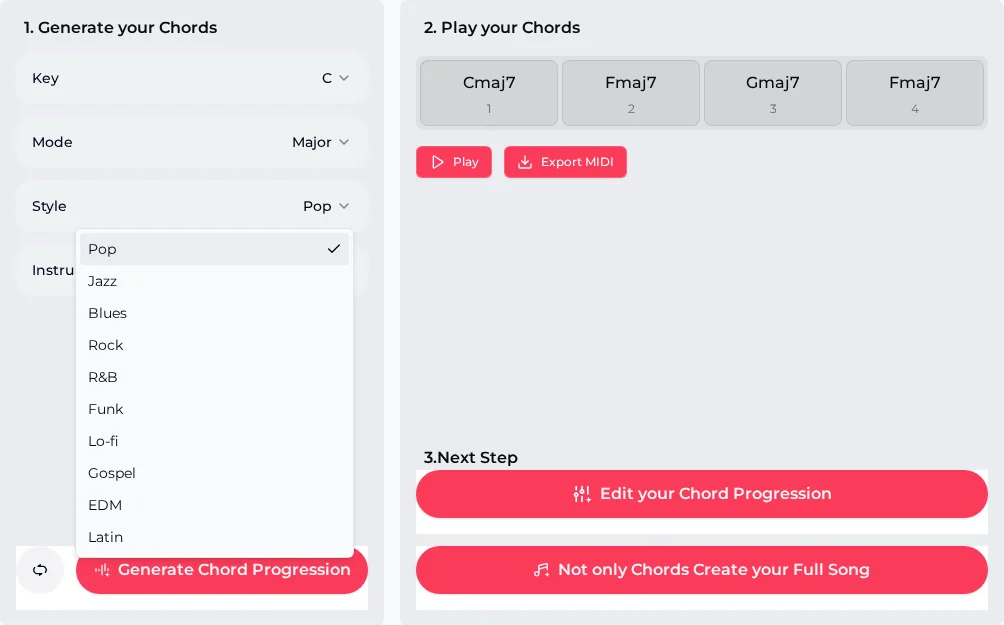
Set Key and Mode for section A, then pick one of ten styles, from Pop and Lo-fi to Gospel and Latin, and Piano or Guitar as the instrument.
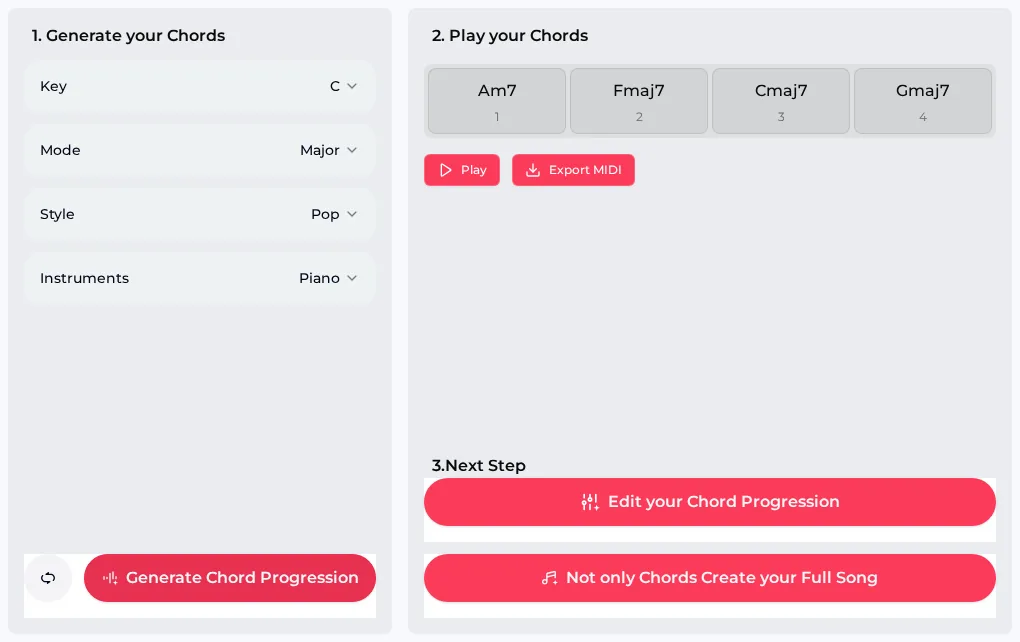
Press Generate Chord Progression for four numbered chords, then Play them. Run it again until one fits, and repeat in the relative minor for section B.
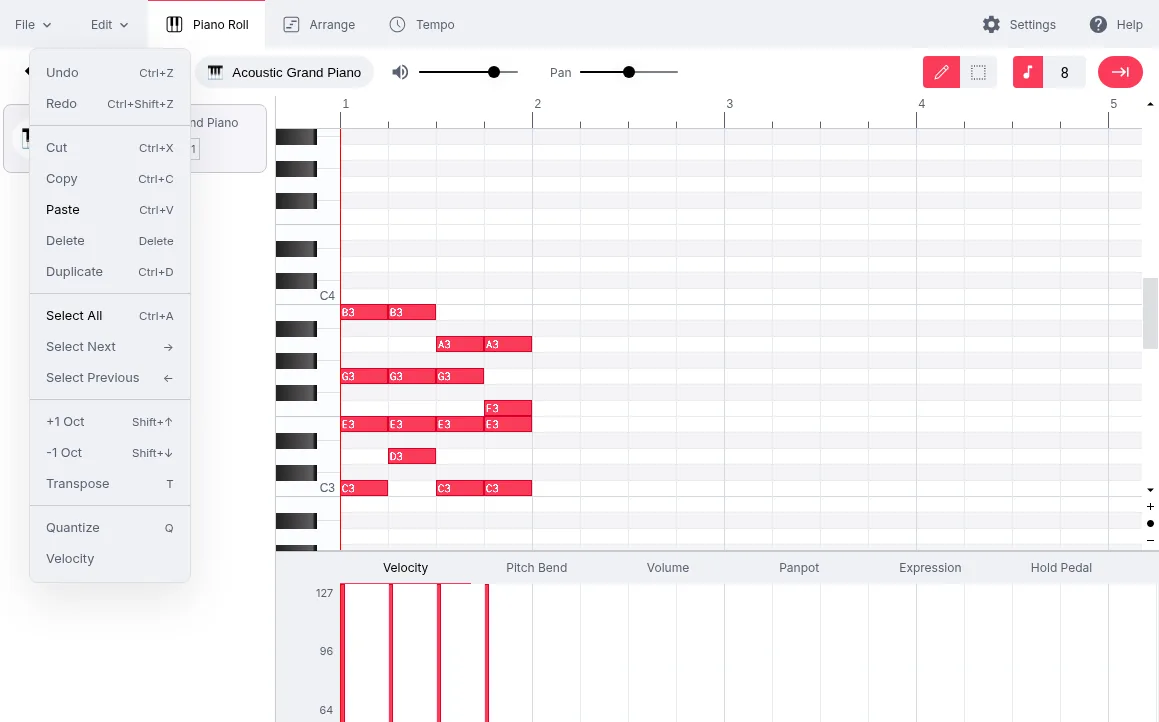
Edit your Chord Progression opens the chords in the MIDI editor, where you write music across sections. Duplicate them to fill a section, Transpose for variety and Add Track for a melody.
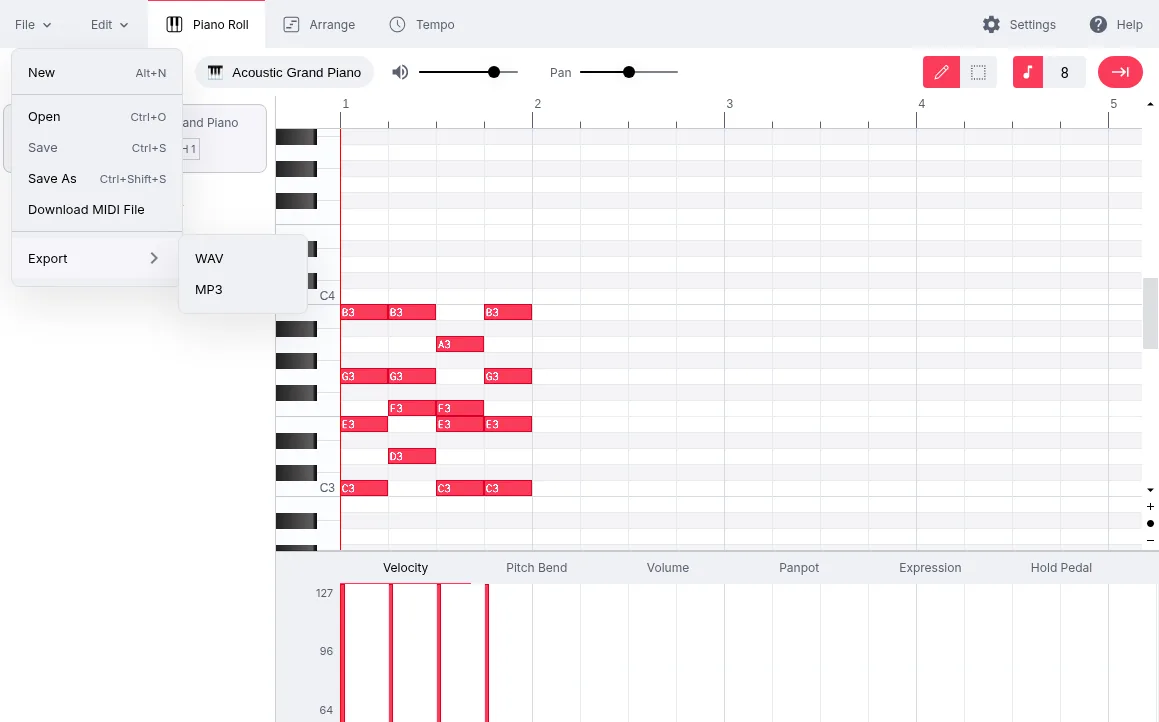
Download MIDI File for your own DAW, or use Export for WAV or MP3. A chord MIDI file can also go through MIDI to MP3 at 128, 192 or 320 kbps.
To show how far four chords can go when you write music this way, we generated a C Major Pop progression for section A and an A Minor Pop progression for section B, rendered both through MIDI to MP3, then looped and joined them in an audio editor. Each chord lasts one beat at 120 BPM, the tempo the MIDI editor opened with.
Section A on its own. Cmaj7, Gmaj7, Am7, Fmaj7 in C Major, looped three times with the last chord left to ring.
A, B, A sketch. Section A four times, section B (F, Dm7, Am7, Em7 in A Minor) four times, then A three times. Listen for the lift when A returns.
Pick a key, mode and style to write music online, generate four chords and keep running it until one progression sounds like the start of your piece.
Most unfinished pieces have good ideas and a missing shape. These habits help you write music that reaches an ending, whether your chords come from the generator or from your guitar.
When you write music, a piece feels finished when it lands on the home chord. Close on a progression that ends on the key's first chord, such as Cmaj7 in C Major, and let it ring rather than cutting off at the end of a loop.
To write music over the chords, add a second track in the MIDI editor and start with one note per chord, taken from the chord itself. Once those anchor notes sound right, add passing notes between them. The melody will always fit the harmony underneath.
When section A returns, change only one detail: a fuller voicing, a higher octave with +1 Oct, or a busier rhythm. Small changes keep the piece familiar while showing that it has moved on.
Every major key shares its notes with a minor key: C Major with A Minor, G Major with E Minor, F Major with D Minor. Generating section B in the relative minor gives contrast without chords that clash with section A.
The chord generator and MIDI editor handle harmony and arrangement well, but neither shows notation, and lyrics or vocals happen in the AI Music Generator instead. The limit you are most likely to meet first is the key list, and it has a simple fix.
The Key menu offers only the seven natural keys, C to B, so keys such as F sharp minor or B flat major are not on the list.
Short answers to questions people ask when they first write music from chords on OpenMusic, from reading notation to turning a sketch into a full song.
No. The chord generator shows chord names on numbered cards, and the MIDI editor shows notes as blocks on a piano roll, with pitch running up the keyboard on the left and time running across. You can hear every change as you write music. The editor never shows notation, so if you need a printed score for other players, export the MIDI file and open it in notation software that reads MIDI.
Each press of Generate Chord Progression creates a new set of four chords for the key, mode and style you chose. Our C Major Pop runs returned three different progressions in a row, including Am7, Fmaj7, Cmaj7, Gmaj7. That is useful for exploring, but save a progression you like right away with Export MIDI or in the MIDI editor. If you write music online over several sittings, note the key, mode and style you used.
Yes. To write music on top, use Add Track in the MIDI editor for a new part and draw notes on the piano roll. A reliable start is one note per chord, taken from the chord itself, then passing notes between them. Quantize tidies the timing, the Velocity lane controls how hard each note plays, and +1 Oct moves a phrase up an octave when you want the return of section A to feel brighter.
The full-song button under the chords opens the AI Music Generator, where a style prompt and optional lyrics produce complete tracks with vocals or instruments. To write music free with full songs, the free plan gives 30 credits a year after a quick sign-up; each generation costs 2 credits and returns two songs. Failed generations are usually credited back automatically. Describe your key, mood and tempo in the prompt to keep the result close to your sketch.
Songs made with the AI Music Generator can come with commercial rights within the scope of the Commercial License. On monthly plans and with Pay Once credits the license costs 5 credits per song, annual plans include it, and a license stays valid after you cancel. Paid plans download MP3, WAV or FLAC, including songs made on the free plan, while free users can download a limited number.

Write music section by section: generate four chords for section A, find its contrast in the relative minor, and shape both into a complete piece in the MIDI editor.
Start With Four Chords