Voice Remover for Live and Home Recordings
Most voice remover demos use polished studio songs. Real recordings are messier: a gig filmed on a phone, a cover you tracked in your bedroom, a rehearsal with the singer bleeding into every microphone. A voice remover can still help with these, but it helps to know what to expect, why some results sound hollow and when another kind of separation is the better choice.
OpenMusic's tool for this job is the audio voice remover, which separates the voice from the rest of an audio file.

What a Voice Remover Can and Cannot Do With Real-World Audio
A voice remover listens to a mixed audio file and tries to pull the voice apart from everything else. On a studio song the voice and instruments were recorded separately and then blended, which gives the AI clear cues.
On a live or home recording the voice also reaches the room, other microphones and the phone's own mic, so parts of it are smeared into the instruments. The result is still usable for many jobs, but it is rarely as clean as a studio track.
| Recording type | What usually works | What to expect |
|---|---|---|
| Studio song | Clean instrumental for karaoke or practice | Small traces on reverb tails and harmonies |
| Home cover or demo | Backing part you can reuse or study | Room echo may leave a faint ghost of the voice |
| Live gig on a phone | Rough instrumental for reference | Crowd noise and room sound stay in the mix |
| Rehearsal with mic bleed | Quieter vocal, not a full removal | Voice picked up by other mics is hard to remove |
Why the Result Can Sound Hollow or Thin
One of the most common complaints after separating audio is that what is left sounds hollow, thin or like a bad phone call. That happens because the voice and the instruments often share the same frequencies.
When the AI removes the voice, it can take some of the body of guitars, keys or room sound with it. Live and home recordings make this more likely, because more of the sound overlaps.
Start from the best copy
A higher quality source file keeps more detail to separate.
Check on headphones
Listen for thin spots in the chorus and sustained notes.
Lower expectations for rooms
Echo and crowd sound will not disappear completely.
Try a different split
Separating into stems can keep more of the instruments.
Use the AI stem splitter to put vocals, drums, bass and other parts on their own tracks for mixing.
Voice Remover, Vocal Remover or Stem Splitter?
These names overlap, and the right choice depends on what you want to keep. If you only want the music without the voice, a voice remover or vocal remover does the job. If you want to keep the voice and drop the music, use a vocal extractor.
If you want to rebalance the whole recording, for example to turn down drums or keep the bass, splitting into stems gives you more control. OpenMusic offers all of these, so you can switch without changing websites.
Split into stems
Use the AI stem splitter when you want separate parts to mix again.
How the OpenMusic Voice Remover Works
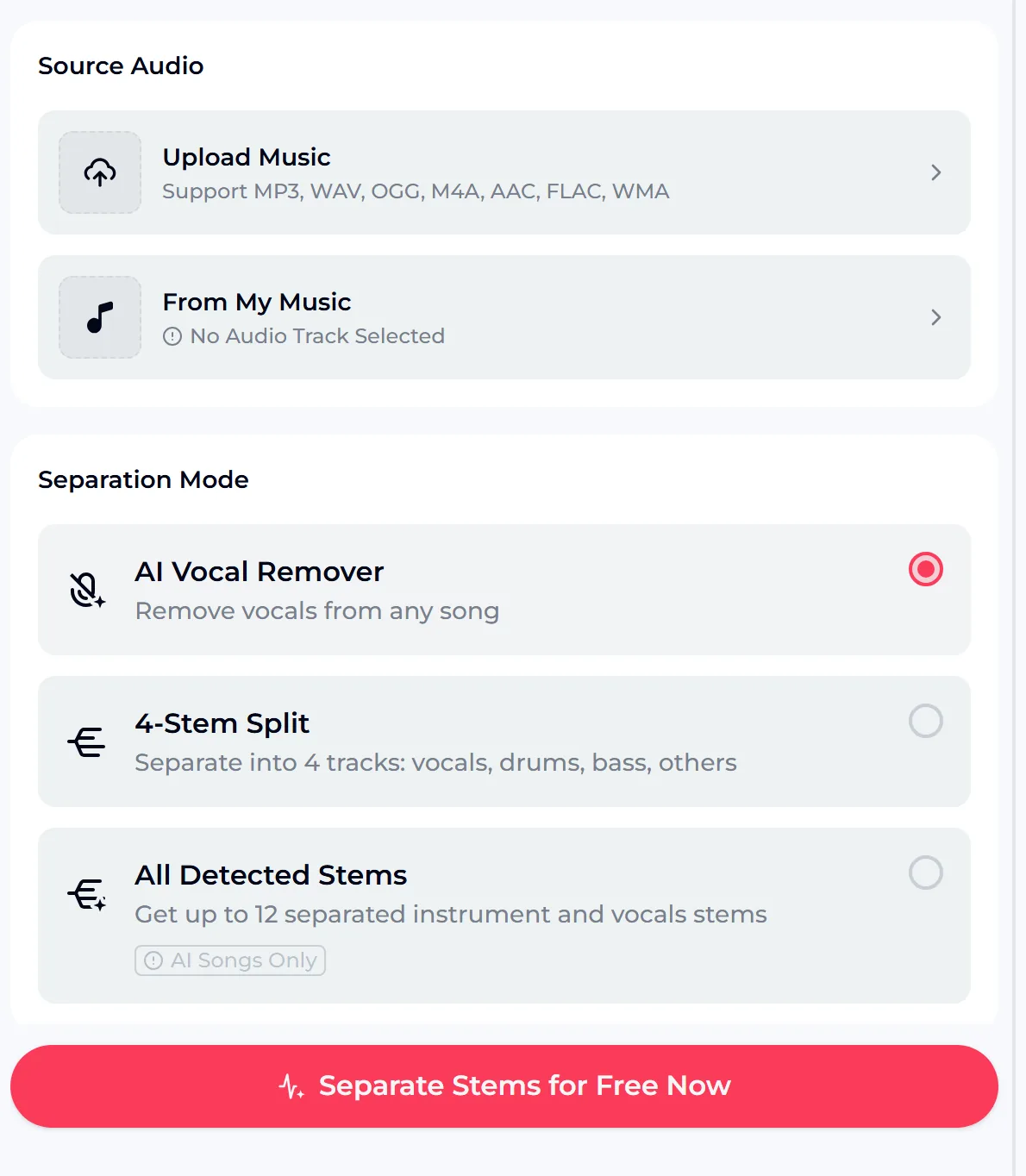
The tool has two parts. Under Source Audio you upload a file or choose a track you made on OpenMusic.
Under Separation Mode you choose how to split it: the AI Vocal Remover mode removes the voice, a stem split mode separates vocals, drums, bass and other parts, and an All Detected Stems mode is available for AI songs only. Then you press the button to separate and listen to the result.
- Source Audio
- Upload Music or From My Music
- Formats
- MP3, WAV, OGG, M4A, AAC, FLAC, WMA
- Separation Mode
- AI Vocal Remover, stem split, All Detected Stems (AI songs only)
- Where it runs
- Your browser, on phone or desktop
Practical Uses for a Voice Remover on Your Own Recordings
Real-world recordings are where a voice remover often saves the most time, because the original multitrack session either never existed or is long gone. These are the jobs where it tends to pay off, as long as you own the recording or have permission to use it.
Practice along with your band
Use the voice remover on a rehearsal recording so you can rehearse your part over the band.
Rework an old demo
Pull the backing part out of a home demo and record a fresh vocal over it.
Study an arrangement
Hear what the instruments play under the vocal in your own live set.
Make a sing-along version
Turn a song you have the rights to use into a karaoke-style backing track.

Copyright, Credits and Licensing
Removing a voice does not change who owns a recording. Original songs remain the property of their rights holders, and the people you record have a say in how their voice is used, so get permission before you publish anything made from someone else's audio.
OpenMusic tools use credits. A free account gets 30 credits a year, and each feature's credit cost is shown on its generate button. Songs made on a free account can be downloaded later with credits, along with a Commercial License.
With a license, you can release and monetize your songs within the scope of the Commercial License. Uploaded songs remain the property of their rights holders, so only process audio you have the right to use.
Voice Remover Questions
How do I remove a voice from audio?
Open the audio voice remover online, upload a file or choose one From My Music, keep the AI Vocal Remover mode selected and start the separation.
Why does the result sound hollow?
The voice shares frequencies with instruments and room sound, so removing it can thin out other parts. Live and home recordings show this more than studio songs. Results vary from file to file.
Can it fully remove a voice from a live recording?
A voice remover often cannot do it completely. Room echo, crowd noise and mic bleed can leave traces, but the voice is usually much quieter.
Which files can I upload?
MP3, WAV, OGG, M4A, AAC, FLAC and WMA audio files.
Is it free?
You can try the voice remover free: it uses credits, and a free account gets 30 credits a year, and the credit cost is shown on the button. Downloads and licensing follow the Credits & Commercial License rules.
Can I use the separated tracks?
Only for audio you own or have permission to use. Original recordings stay the property of their rights holders.
Try It on One of Your Own Recordings
The best way to learn what a voice remover can do with real-world audio is to test it on a recording you know well. Pick a rehearsal, a home demo or a cover you own, open the audio voice remover and listen to the result on headphones.
If it sounds thin, try a higher quality copy or a stem split instead, and keep whichever version works best for your practice, remix or study. It all runs in your browser as a voice remover online.