Under a reel or vlog
Many people make ai generated songs for videos: a wordless bed for a travel montage, or an upbeat track behind a product demo, picked from the takes that best match the pace of the clip.
Finished tracks you can keep, edit and release
AI Generated Songs on OpenMusic are complete tracks with melody, arrangement and, when you want them, sung vocals. Each one lands in your workspace ready to play, rename, remix, split or download, so a short brief can turn into a file you actually use.

A song from the generator is a finished recording shaped by your description, played by the instruments you named, with a lead voice unless you asked for an instrumental. If you paste your own words, those become the sung part; if you have none yet, type a description in the Prompt and let the mood, genre and purpose carry the request.
That makes free ai generated songs useful well beyond testing. A teacher can make a classroom tune, a small shop can try a jingle idea, and a hobby songwriter can hear a chorus they have only hummed. You can make ai generated songs online, and the generator works in a phone browser as well, so an idea can be tried the moment it arrives.

Many people make ai generated songs for videos: a wordless bed for a travel montage, or an upbeat track behind a product demo, picked from the takes that best match the pace of the clip.
Writers who already have verses get ai generated songs with lyrics they wrote themselves, which is a direct way to learn whether a chorus actually sings well.
Birthdays, retirements and team parties suit a one-off song with real names and inside jokes in the lyrics, played once in the room and kept afterwards.
Choirs, buskers and students use an instrumental version as a backing to rehearse with, then switch to the vocal take to check phrasing against it.
The clips below were made on OpenMusic and are worth a full listen before you write your own request. Pay attention to how each clip develops and how it ends, since those details matter more for a usable track than the genre does.
Vocal song
A full vocal track made from a short brief. Listen for how the voice sits over the instruments and how the take ends.
Second style
A different arrangement from the same generator. Compare the energy and instrument balance with the first clip, then decide which direction your own request should lean toward.
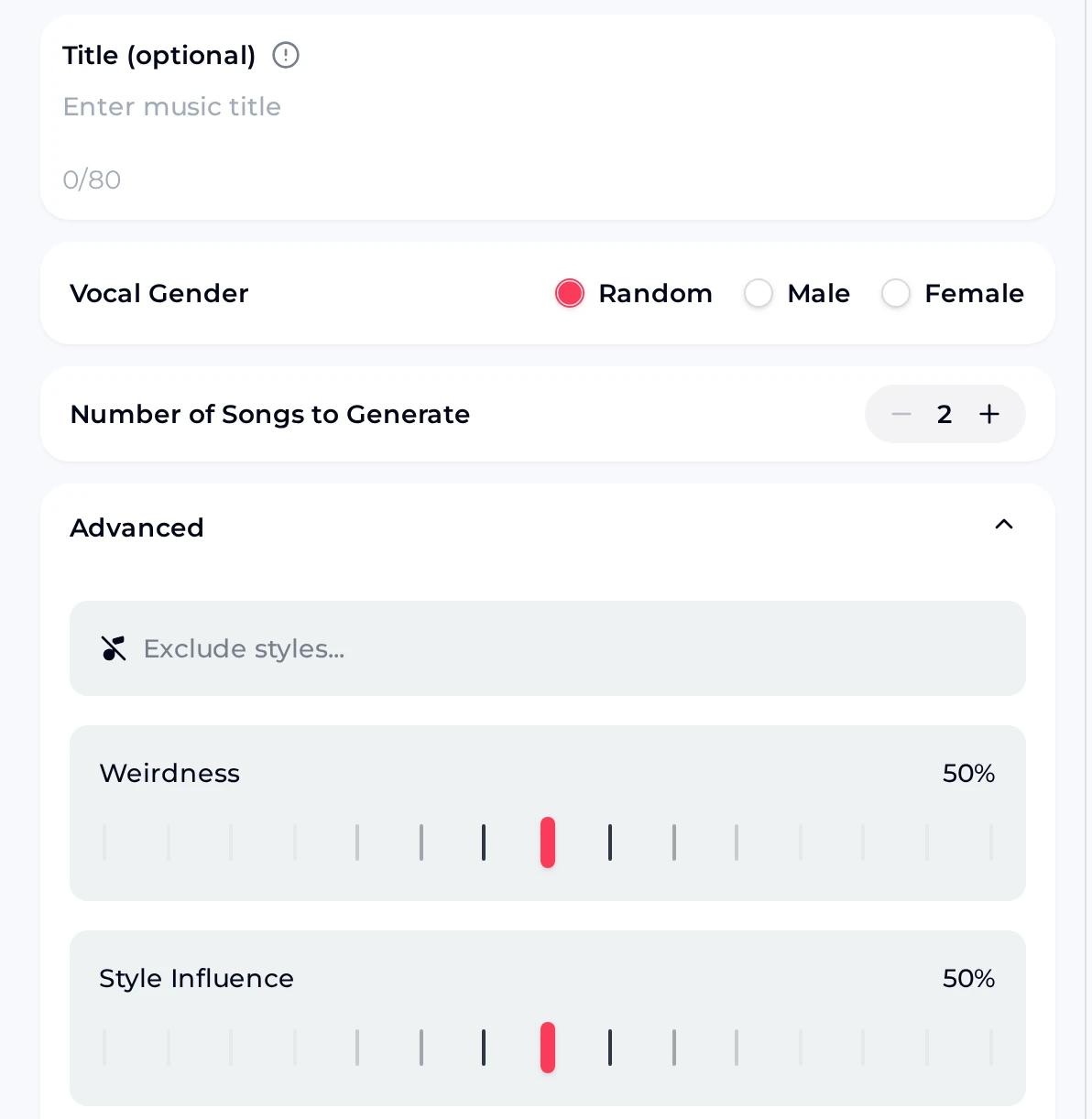
The capture shows the lower half of the Own Lyrics tab, signed out, with Advanced opened. These settings decide what the track is called, who sings it and how many takes come back, so check them once before every request.
Finished tracks sit in your workspace, and each has a menu of next steps. Under Remix you will find four options: Cover, Extend, Replace Section and Mashup. Cover restyles a melody you like, while Extend adds length when a track ends too soon.
To edit ai generated songs, stay in My Workspace and open Remix on the track, where Extend and Replace Section sit in the same menu.
State the genre, the feeling and where the song will be heard. “Bright ukulele pop for a kids’ birthday video” already answers most of the questions a generator needs.
Paste verses under Own Lyrics when you have them, or just type a description in the Prompt. Turn on Instrumental Only for background music with no singer.
Play each take through. Note which take you like best and how each one ends, so your next brief can build on it.
Rename the keeper with Edit title; the same menu also lists Move to. Then download it in the format your project needs.
Free accounts receive 30 credits a year, which is 15 generations at 2 credits per song. Unused credits reset at renewal, so spend them while you have ideas. Free users can download a limited number of songs, and paid plans download MP3, WAV and FLAC, including tracks made while you were on the free plan.
If you plan to release or monetize a track, publish within the scope of the Commercial License. Within the scope of the Commercial License, monthly plans and Pay Once credits cover the certificate at 5 credits per song, and yearly plans include it at no extra credit cost.

They are full tracks produced by the AI Music Generator from a written description, your own lyrics, or a description plus lyrics. Each take has a sung lead unless you switch on Instrumental Only. Number of Songs to Generate defaults to 2, and every take is stored in your workspace, where you can rename them, remix them with Cover or Extend, split them into stems, or download them for a video or a class, and for a release within the scope of the Commercial License.
Yes. A free account receives 30 credits a year, and a song costs 2 credits, which gives you 15 generations to work with. That is plenty to try a few different genres, a lyric idea and an instrumental bed before deciding whether you need more. Free users can download a limited number of songs. If you upgrade later, paid plans download MP3, WAV and FLAC, including the songs you made while you were still on the free plan.
Yes. Open the Own Lyrics tab, paste your verses and chorus, then type a genre and a mood into Styles. Under the lyrics you can add a title of up to 80 characters and choose Random, Male or Female for the voice. Advanced opens Exclude styles plus the Weirdness and Style Influence sliders. Once the takes come back, listen for whether every line is clear, and keep the take where your lyrics sit most naturally.
Each finished song has a menu in your workspace. Remix offers Cover, Extend, Replace Section and Mashup. The Editor menu opens AI Stem Splitter, AI Vocal Remover, Story Video and Photo Video. The Lyrics menu lists View Lyrics and Use Style & Lyrics. Open Remix on a take you like to find these items, and check the Lyrics menu when you want to reuse a style.
You can publish and monetize them within the scope of the Commercial License. Monthly plans and Pay Once credits unlock the certificate for 5 credits per song, and yearly plans include it at no extra credit cost, all within the scope of the Commercial License. Download the song and the certificate together, and store them in the same folder as your release notes. Platforms such as streaming services or video sites may ask for proof, so keeping the song and its certificate side by side saves time.
The Downloads menu on a finished song lists MP3 Audio, WAV Audio and FLAC Audio, plus Batch Download, Commercial License and PNG (Cover Image). Paid plans download all three audio formats. MP3 suits quick sharing and phones, WAV suits video editors and most audio software, and FLAC keeps a lossless copy at a smaller size than WAV. Choose the format your editor or platform expects whenever you download ai generated songs for a project.
Write a short description or bring your own lyrics, compare what the generator returns, and file the track that fits your plan.
Open the AI Music Generator